Workspace & support
Connect and troubleshoot integrations
For Owners and Office
Connect Gmail or Xero, configure workspace email forwarding, and interpret receiving, sending, and sync status safely.
On this page
Use this guide to connect workspace email and Xero, then diagnose the status shown in Settings → Integrations.
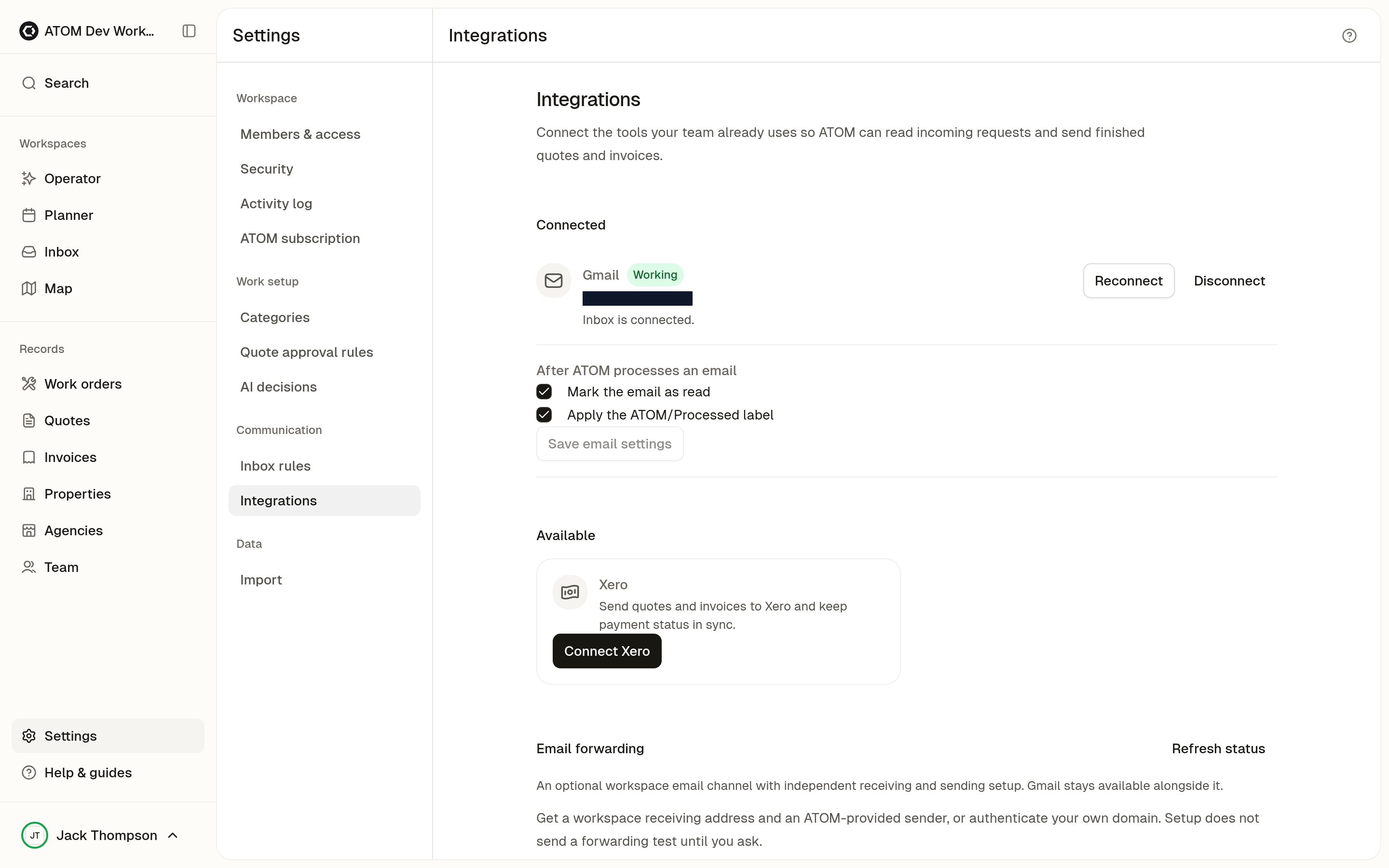
#Start from Settings
Open Settings → Integrations. Owner and office roles can manage integrations. Changes are disabled when the workspace cannot accept writes.
The current screen provides:
- Gmail connection status, connected address,
Reconnect,Disconnect, and processed-email preferences - Xero connection status, connected organisation, and
Reconnect - optional
Email forwardingwith separateReceivingandSendingchecks
The integration rows show Working, Action needed, or Disconnected. They do not show a complete processing history or prove delivery to a customer.
Email integrations are workspace shared. They are not private inboxes for individual ATOM users.
#Connect Gmail
Connect Gmail when the approved workspace mailbox should receive requests and send replies through Gmail.
1. Choose Connect Gmail. 2. Review Google's consent screen and select the approved operations mailbox. 3. Return to ATOM and confirm that the Gmail row shows the expected address. 4. Choose whether processed messages should be marked as read, receive the ATOM/Processed label, or both. 5. Choose Save email settings after changing those preferences.
ATOM requests Gmail access that can read, modify, label, and send mailbox messages. Do not connect a personal mailbox unless it is the approved workspace operations inbox.
#Verify Gmail processing
A Working Gmail row means the connection is usable. Its description may show the last checked time. Action needed shows the latest known error.
To check whether Gmail requests reach ATOM:
1. Confirm the connected Gmail address. 2. Send a controlled request to that mailbox. 3. Open Inbox and find the message in the correct workspace. 4. Review the extracted details and matching decision before relying on the result.
Do not treat connection status alone as proof that a specific email created or updated a work order.
#Disconnect or reconnect Gmail
Choose Reconnect when the mailbox is still correct but you need to authorize the connection again.
Choose Disconnect only when ATOM should stop using that Gmail connection. The confirmation dialog explains the effect before you continue. Existing ATOM records remain, but Gmail intake and Gmail-backed replies stop until another suitable channel is available.
Xero currently has Reconnect, not a customer-facing disconnect action on this screen.
#Gmail status messages
Workingmeans Gmail is connected. Check the displayed address before relying on it.Action neededmeans the connection or recent processing reported an error. Read the row description, then reconnect if the mailbox and workspace are still correct.Disconnectedmeans no Gmail inbox is connected.- A cancelled consent flow means no new connection was saved. Start again only if you still intend to connect that mailbox.
- A workspace-locked message means integration changes are unavailable until the workspace can accept writes.
- A missing-configuration message means this ATOM environment cannot start Gmail authorization. Contact support.
Permission deniedmeans Gmail did not grant offline access. Revoke ATOM in your Google Account settings, then connect again.Couldn't create Gmail labelmeans ATOM could not create its required label. Check ATOM's Google permissions, then connect again.
#Connect Xero
Connect Xero to send quotes and invoices to Xero and keep payment status in sync. This screen has no separate contact-sync control.
1. Choose Connect Xero. 2. Sign in to Xero and approve the requested access. 3. Select the correct Xero organisation. 4. Return to ATOM and confirm the organisation name in the Xero row.
Connect and Reconnect manage the workspace's Xero connection. Quote and invoice sync can use the primary or previously associated agency connection, but this row displays the Xero organisation rather than an agency name.
#Verify Xero sync
The integration row confirms connection health only. Verify a quote or invoice on that record's own page.
Workingmeans ATOM has a usable Xero connection.Action neededmeans access was revoked or the last known Xero operation reported an error.Disconnectedmeans no Xero organisation is connected.
If ATOM could not load the Xero status, refresh the page before treating the integration as disconnected.
Do not use the integration row as payment confirmation. Xero sync state, email receipt, and payment status are separate facts.
#Xero status messages
Use the record-level status on the quote or invoice for the exact outcome:
- pending or processing means the operation has not finished
- succeeded or synced means Xero accepted the record operation
- failed or error means the operation did not complete and needs review
- sent or queued describes a send workflow, not customer payment
When ATOM says a Xero record is synced, continue payment updates in the accounting workflow described by Track invoices, payments, and Xero status.
#Verify inbound email routing
Use either connected Gmail or workspace email forwarding for inbound email. A workspace can keep Gmail available alongside forwarding.
#Set up email forwarding
1. Choose Set up email forwarding. 2. Copy the Workspace receiving address. 3. Add it as a forwarding address or filtered forwarding destination in your mailbox. 4. Return to ATOM and choose Refresh status to look for a confirmation code. 5. Enter the code in your mailbox only when you just requested this forwarding setup. 6. Enable forwarding and save the mailbox settings. 7. Enter the source mailbox under Mailbox forwarding into ATOM. 8. Choose Send forwarding test. 9. After the test returns through forwarding, choose Refresh status. 10. After Receiving becomes Verified, choose Check sending.
ATOM labels received forwarding codes as unverified because an inbound message can be forged. It does not approve forwarding in Gmail for you.
Receiving: Verified records the last successful test. It is not continuous monitoring of your mailbox rules. A failed test, or a test that has not returned within 30 minutes, shows Action needed; check the forwarding rule before sending another test. Wait at least one minute before retrying.
If the test reports that sending is not ready or must be configured by an ATOM operator, contact support before retrying.
#Choose a sender
The forwarding channel starts with an ATOM-provided sender. Check Recipients see this sender before replying.
Choose Use your own domain only when you can manage that domain's DNS:
1. Enter the Custom sender email and choose Get DNS records. 2. Add the ownership TXT record. 3. Choose Check domain status. 4. Add the displayed SES DKIM CNAME records after ownership is verified. 5. Check again, then choose Use verified custom sender.
Preparing a domain does not select it automatically. Choose Use ATOM address to return to the hosted sender.
The managed forwarding channel cannot send as a personal @gmail.com address. Its replies do not appear in Gmail's Sent folder. Connect Gmail when the Gmail sender identity and sent-mail record are required.
#Understand the two checks
Receiving: Verifiedmeans the controlled forwarding test reached this workspace.Receiving: Not verifiedmeans setup or testing is incomplete.Receiving: Action neededmeans the last test failed or expired. Check the forwarding rule, then send another test.Sending: Readymeans the managed sender and account passed the readiness check.Sending: Action neededmeans the displayed sender or account reason needs attention. Contact support rather than repeatedly retrying a readiness failure.Sending: Not checkedmeans no current readiness result is available.
Ready does not mean a message reached its recipient.
#Check an existing managed address
For an existing forwarding setup:
1. Confirm the displayed workspace receiving address. 2. Send a controlled message through the configured forwarding mailbox. 3. Refresh the forwarding status. 4. Confirm the message appears in the correct workspace inbox. 5. Review the thread's agency, property, and work-order matching result.
Inbound processing can create a new work order, link a known thread, identify a duplicate, or hold the request for review. Do not promise automatic creation for every message.
#Message bodies and replies
If a message body does not load after one refresh, record the thread and message time for support.
Replies require:
- an owner or office role
- a writable workspace
- an inbound message in the active workspace
- at least one valid
Torecipient - a non-empty body
- a send-capable channel for that thread
- a verified sign-in email for the operator
- no blocked recipient in
ToorCc
ATOM also rate-limits repeated sends. If ATOM reports that the provider accepted a reply but local timeline recording is incomplete, do not resend it.
For Gmail and managed sending, ATOM records provider acceptance. It does not offer recipient delivery or bounce status in the Inbox. Confirm receipt separately when it matters.
#Record SMS conversations handled outside ATOM
SMS is not configured from Settings → Integrations. The current Inbox has no general SMS sending flow.
Use a manual thread to record a phone or SMS conversation that you handled outside ATOM. The Inbox timeline is an internal record, not evidence that an SMS was delivered.
#Contact support
Contact support@atomworks.app when the visible steps do not resolve the issue.
Include:
- workspace name
- integration area: Gmail, forwarding, Xero, message body, or reply
- visible status and error text
- affected mailbox, inbox thread, quote, invoice, or work order
- approximate timestamp and timezone
Do not include tokens, secrets, raw email source, unrelated customer data, or private attachments.
#Setup checklist
- Gmail shows the approved workspace mailbox, or forwarding shows the intended workspace receiving address.
- A controlled inbound message appears in the correct workspace.
- Extracted and matched work is reviewed instead of assumed correct.
- The thread has a ready send channel before anyone replies.
- Xero shows the intended organisation when accounting sync is required.
- Quote, invoice, and payment outcomes are checked on their own records. Confirm email receipt separately when needed.
- The general Inbox composer does not send SMS. Record outside conversations as manual intake.